After following these instructions, your copier will print files attached to emails received by an email account you create specifically for this purpose. This is useful for users who need to print remotely to a Sharp device from outside the printer’s network or for users who do not have print drivers installed. You can print from anywhere in the world with an internet connection.
*DISCLAIMERS*
- Keep the email address you create for this purpose private. Once configured, your copier will print any and all attachments received by this email account.
- Your Sharp printer requires the PostScript option to print PDFs via Email Print. Some models include PostScript by default, while others require it as an optional upgrade. Certain models also support Word, Excel, PowerPoint, TIFF, and JPEG files.
This is a three-part process. Before you begin, you will need your machine’s IP address. Click here for instructions on how to print this information from your Sharp copier.
Part 1: Create Your Email Account
- Create a Gmail account and record the password.
- From the Gmail inbox, click the Settings icon and select Settings.
- Click Forwarding and POP/IMAP.
- Under POP Download, enable POP for all mail.
- Set “When messages are accessed with POP” to Delete Gmail’s copy.
- Click Save Changes.
- Enable 2-Step Verification under the Security tab.
- Search for “App passwords” and create an app password for the printer.
- Copy the generated app password for later use.
Part 2: Configure the Sharp Printer for Gmail POP Email Printing
- Enter the printer’s IP address into a web browser to access its web interface.
- Click the System Settings tab.
- Select Printer Settings.
- Click E-mail Print Settings from the left menu.
- Configure the settings as follows:
- Email Print: Enabled
- POP3 Server: pop.gmail.com
- Port Number: 995
- POP Authentication: Unchecked
- Username: yourgmailaccount@gmail.com
- Password: App password created earlier
- Check Interval: 1 minute
- Enable SSL: Checked
- Click Submit and run the connection test to confirm successful configuration.
Part 3: Printing via Sharp Email Print
- Create a new email addressed to the Gmail account you created.
- Attach the file you want printed.
- If your email signature includes images, switch the email format to Plain Text to avoid printing the signature image.
- Send the email.
After approximately one minute, the Sharp printer will automatically print the attached file. This completes the Email Print setup process.
Nationwide Sales and Service
Platinum Copier Solutions is the premier Sharp copier dealer in Texas, but we can cover your office equipment needs nationwide! We work with a network of certified Sharp providers around the country to provide coverage to all 50 states. Your business has one company to contact for all sales, service and supply requests.
Perks of using one vendor company-wide: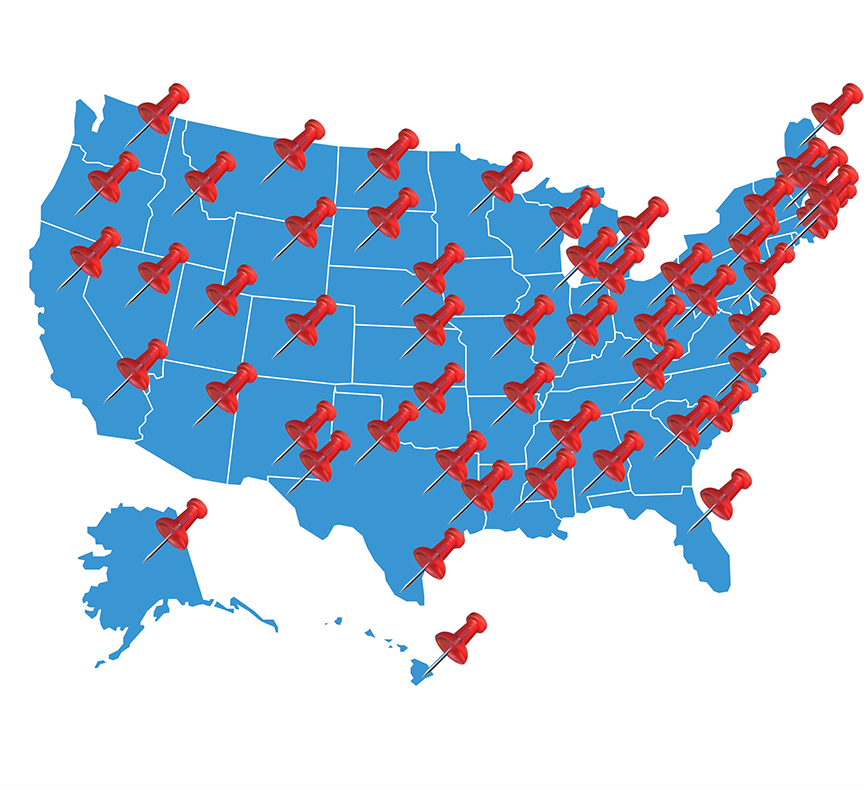
- Consolidated billing
- Live voice answering for service dispatch and supply orders nationwide
- Uniform fleet with matching interfaces and supplies
- Standardized “clone” file so all of your equipment has identical settings (security, network settings, interface customization)
- Support tools for IT staff to manage entire fleet
- Automated meter reading collection
- Proactive toner shipment (*opt-in)
Let’s get started.



Kimberly Gonzalez founded Platinum Copier Solutions in 2007 after building her career in the copier and office equipment industry, which began at just 19 years old, selling Xerox copiers. Her early hands-on experience sparked a lifelong passion for document systems and office technology, ultimately inspiring her to launch her own company. As the 100 percent owner, Kimberly continues to lead Platinum Copier Solutions with a clear vision and commitment to quality.