
SOLVED: Network Error. (Timeout Error) Consult your network administrator.
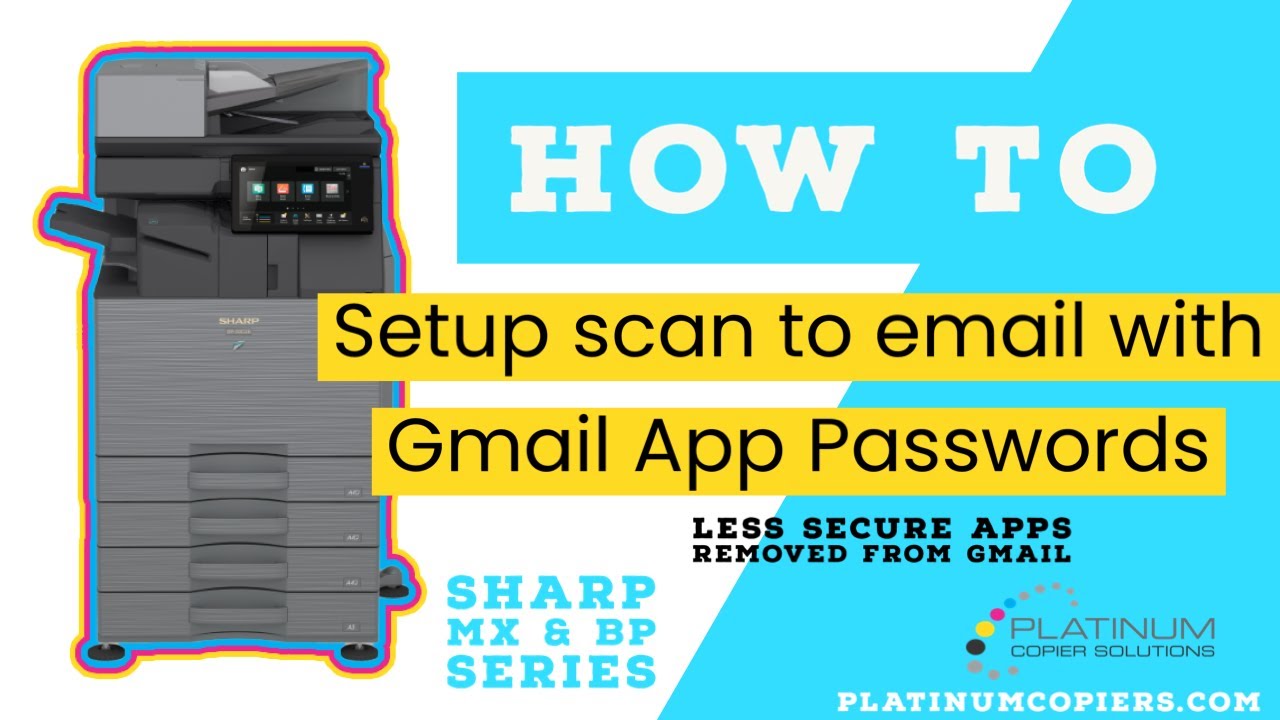
This procedure will show you How To Setup Scanning To Email with Gmail App Passwords 2-Factor Authentication on your Sharp Copier, since Google is getting rid of Less Secure Apps at the end of May 2022. The admin password by default is ‘admin’ unless it has been changed.
Errors: CE-00 Authentication Error Consult your Network Administrator, Communication Lost While Sending Image
Step-by-step instructions can be found here.
Models these instructions pertain to:
MX-3051, MX-2651, MX-3071, MX-3551, MX-3571, MX-4051, MX-4071, MX-5051, MX-5071, MX-5070, MX-5050, MX-3050, MX-3070, MX-3550, MX-3570, MX-6050, MX-6070, MX-6051, MX-6071, MX-M3050, MX-M3051, MX-M3070, MX-M3071, MX-M3550, MX-M3551, MX-M3570, MX-M3571, MX-M4050, MX-M4051, MX-M4070, MX-M4071, MX-2640N, MX-3140, MX-4140N, MX-4141N, MX-5140N, MX-5141N, BP-70C31, BP-70C36, BP-70C45, BP-50C26, BP-50C31, BP-50C36, BP-50C45, BP-70C55, BP-70C65, BP-50C55, BP-50C65, BP-50M26, BP-50M31, BP-50M36, BP-50M45, BP-50M55, BP-50M65, BP-70M31, BP-70M36, BP-70M45, BP-70M55, BP-70M65
How-To Video Tutorial

Kimberly Gonzalez founded Platinum Copier Solutions in 2007 after building her career in the copier and office equipment industry, which began at just 19 years old, selling Xerox copiers. Her early hands-on experience sparked a lifelong passion for document systems and office technology, ultimately inspiring her to launch her own company. As the 100 percent owner, Kimberly continues to lead Platinum Copier Solutions with a clear vision and commitment to quality.
![How To Scan on your Sharp Copier [Video]](https://platinumcopier.itvibes.org/wp-content/uploads/2026/03/youtube-thumbnail-video-1080x675.jpg)
![How to Setup Scanning to Email with Office 365 on Sharp Copier [Video]](https://platinumcopier.itvibes.org/wp-content/uploads/2026/03/scanning-to-email-1080x675.jpg)