SOLVED: Network Error. (Timeout Error) Consult your network administrator.
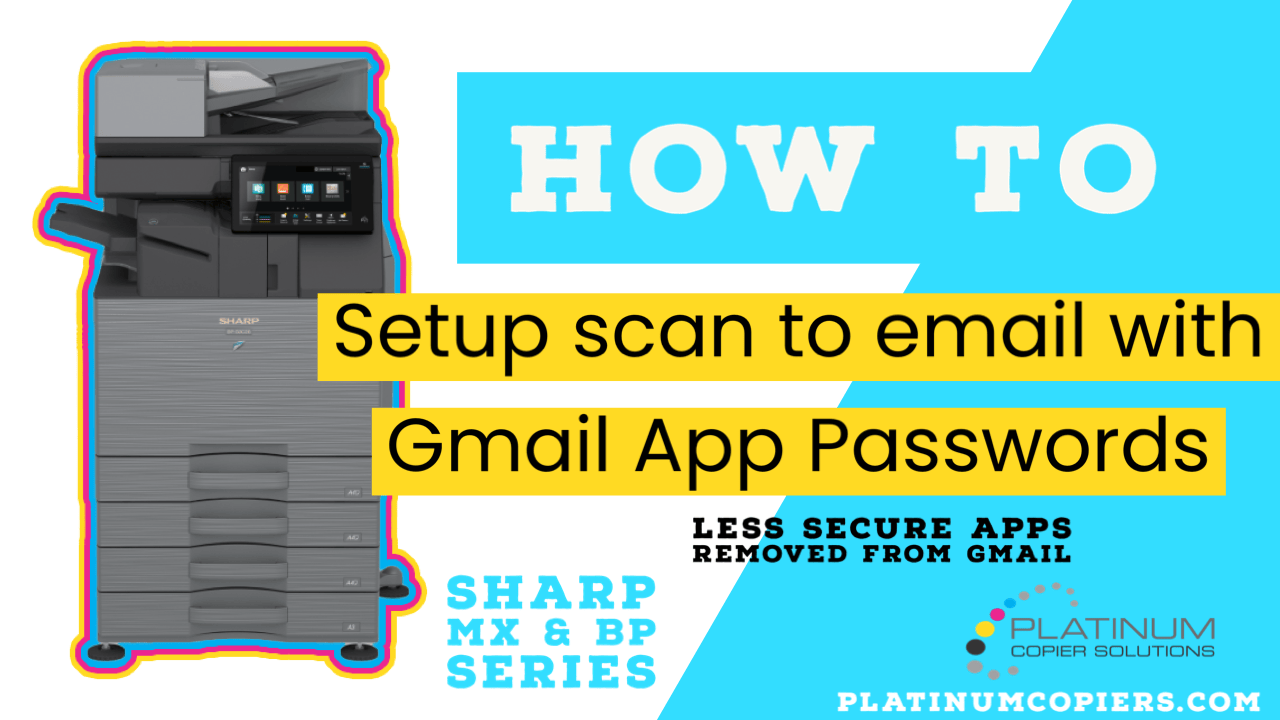
Gmail is disabling Less Secure Apps as of May 31, 2022. This procedure is for setting up a new Gmail account from scratch, enabling 2-factor authentication, creating a Gmail App Password, and setting up scanning to email on your Sharp multi-function device using these settings.
Disclaimer:
Platinum Copier Solutions created this How To for users to resolve this Gmail issue themselves free of charge. If we need to visit your physical location it will cost $150 for an hour of labor.
Follow Along With the Video or Use the Step-by-Step Instructions Below
Begin This Procedure From the Touch Panel of Your Sharp Device
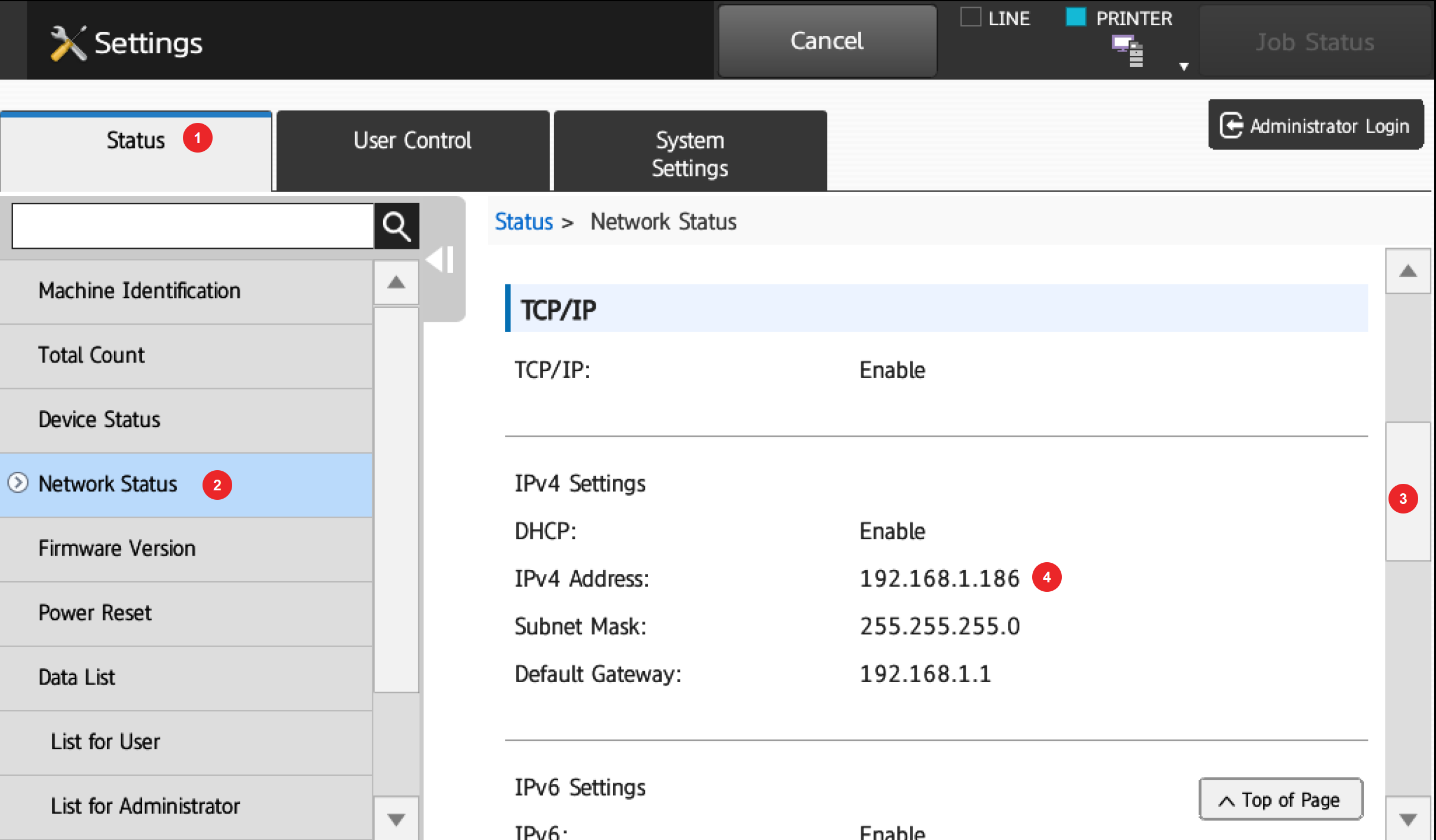
1. Tap Settings on the Home screen.
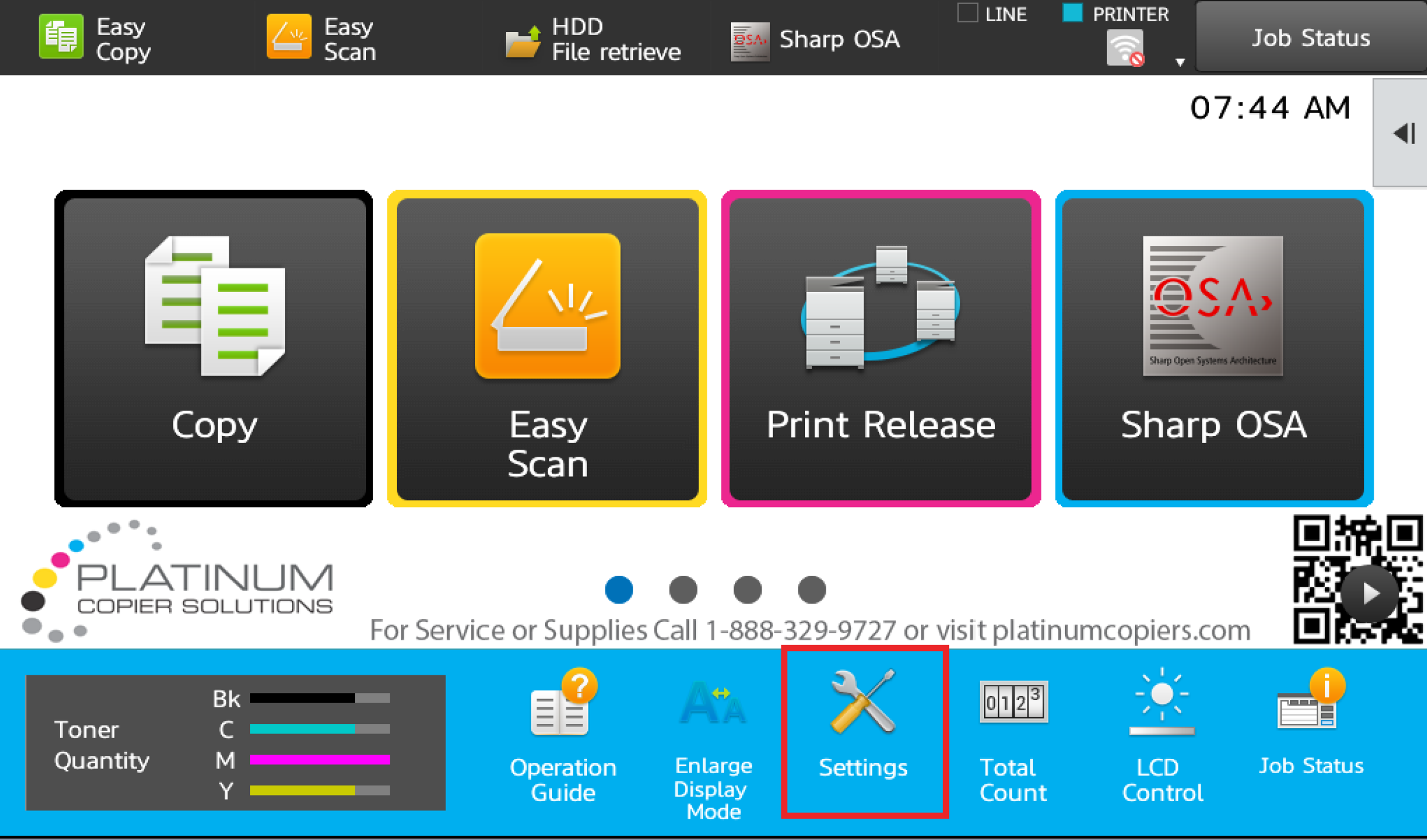
2. Tap Status, then Network Status. Scroll down and note the IPv4 address.
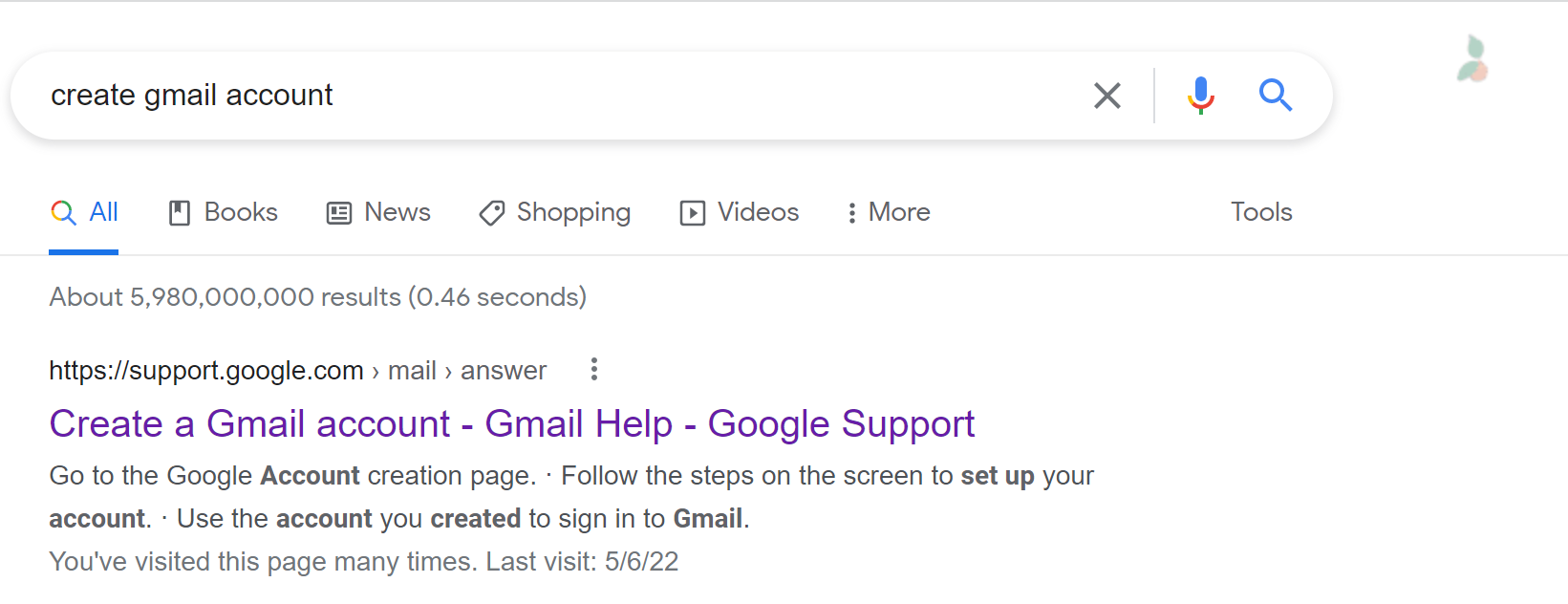
3. On a computer, search Google for “Create a Gmail Account” and open the link.
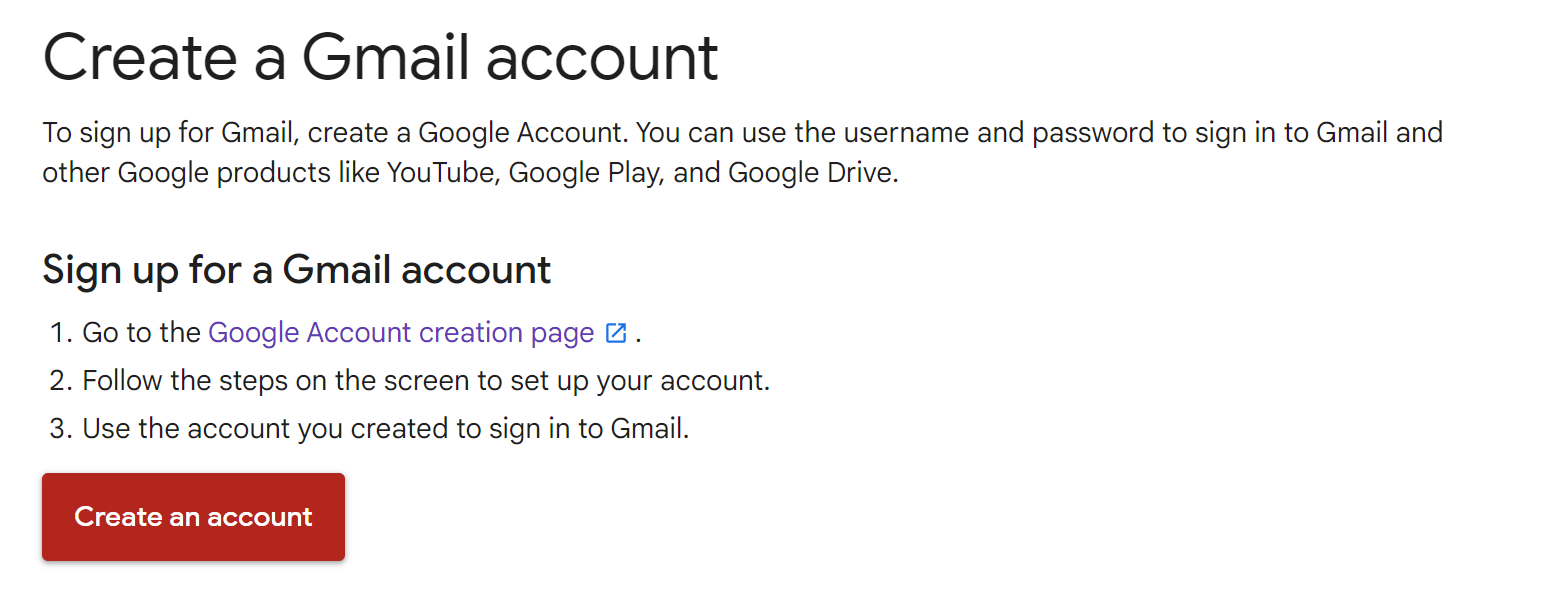
4. Click Create an Account.
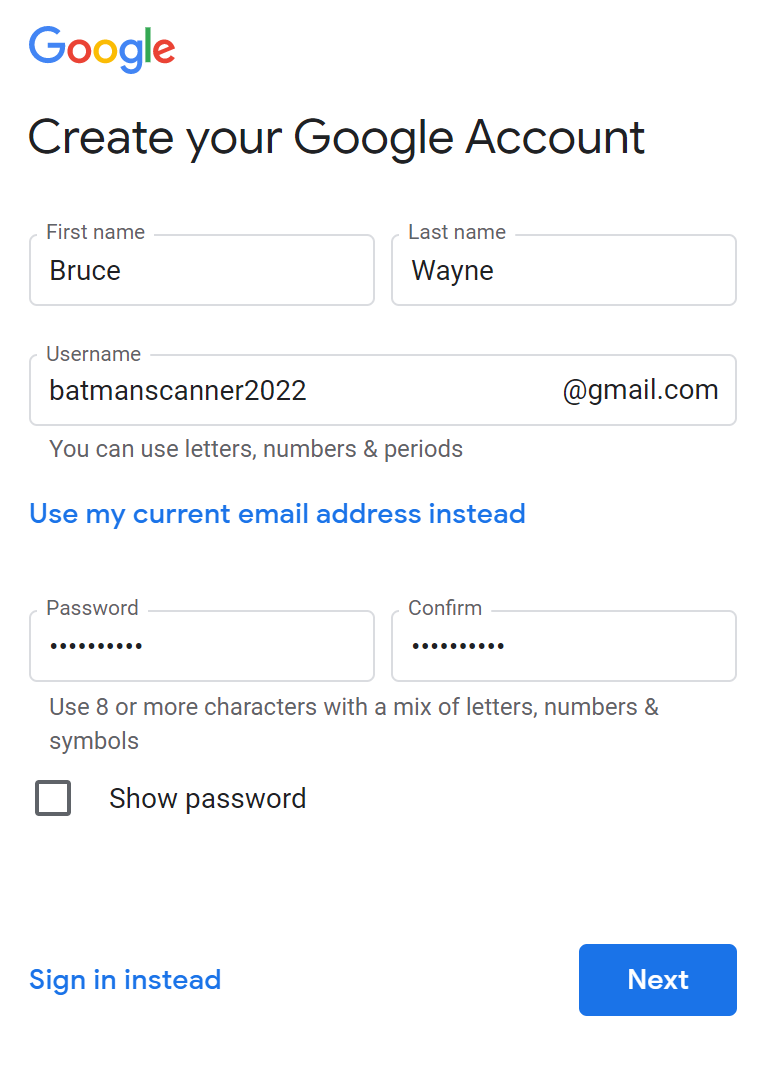
5. Fill in the account details. This account is for scanning only. Save the username for later.
6. Enter a birthdate and gender, then agree to the terms.
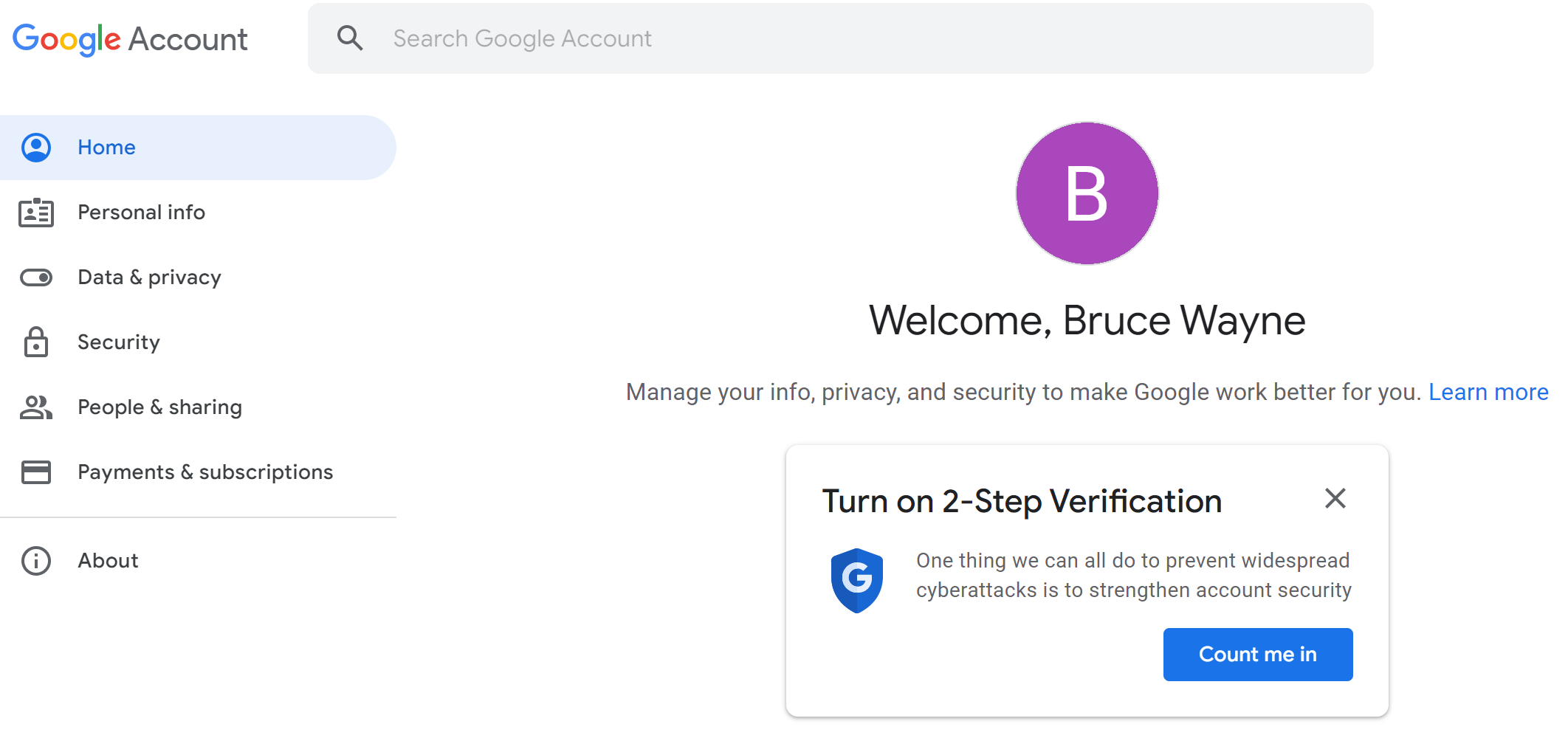
7. On the account home screen, click Count Me In to begin 2-Factor Authentication.
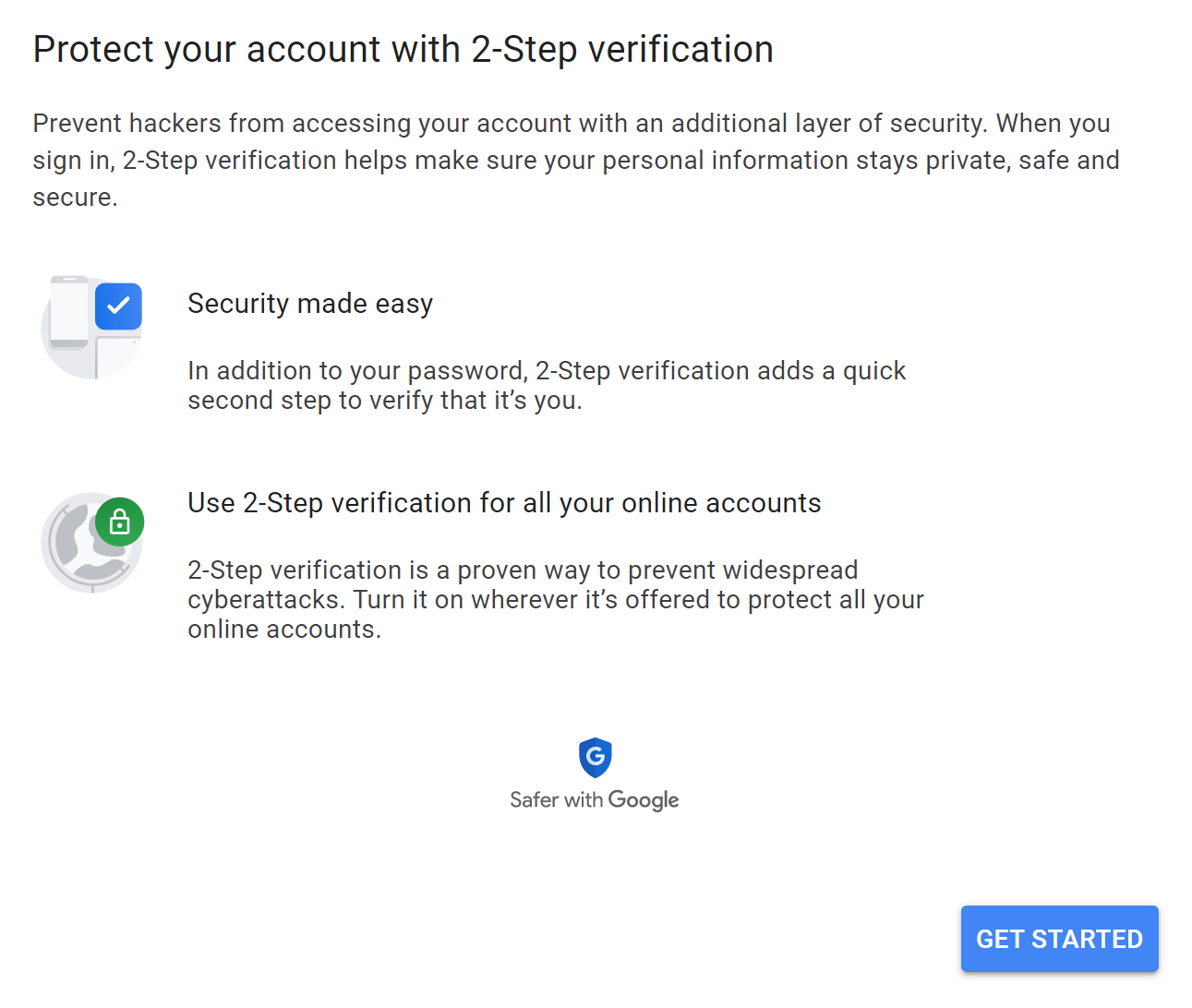
8. Click Get Started.
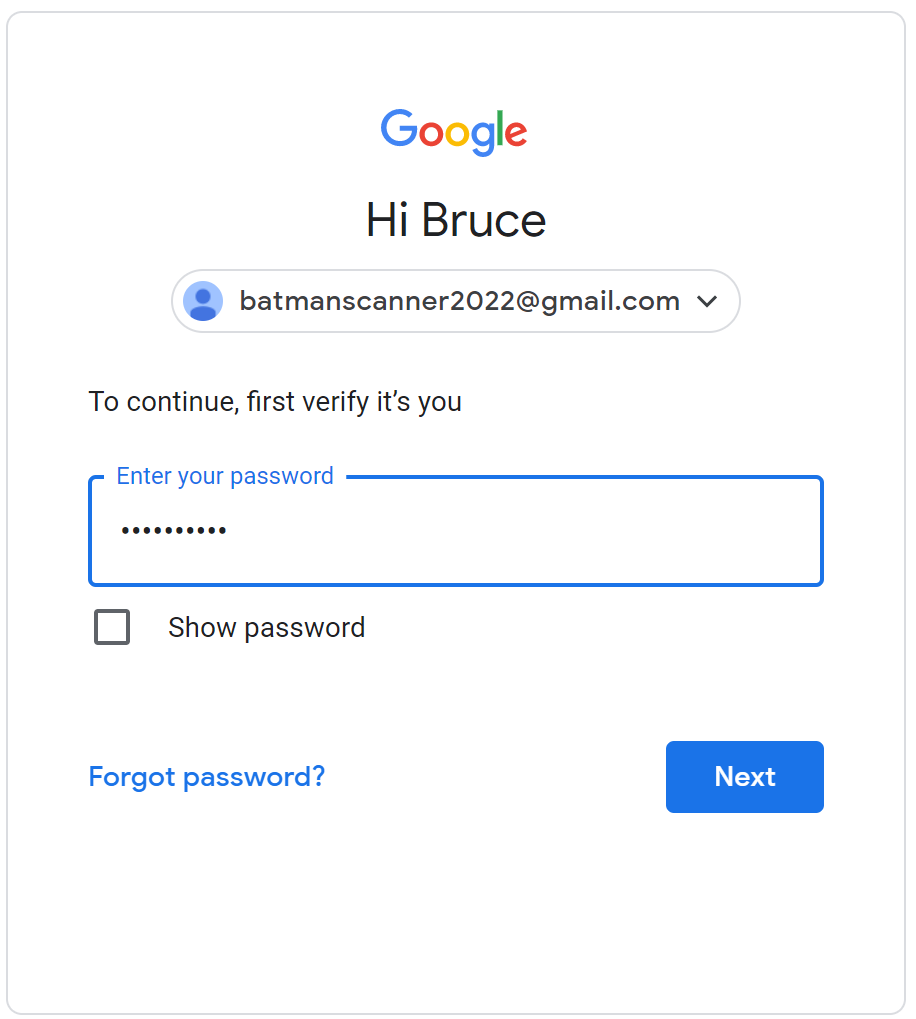
9. Re-enter your password to verify your identity.
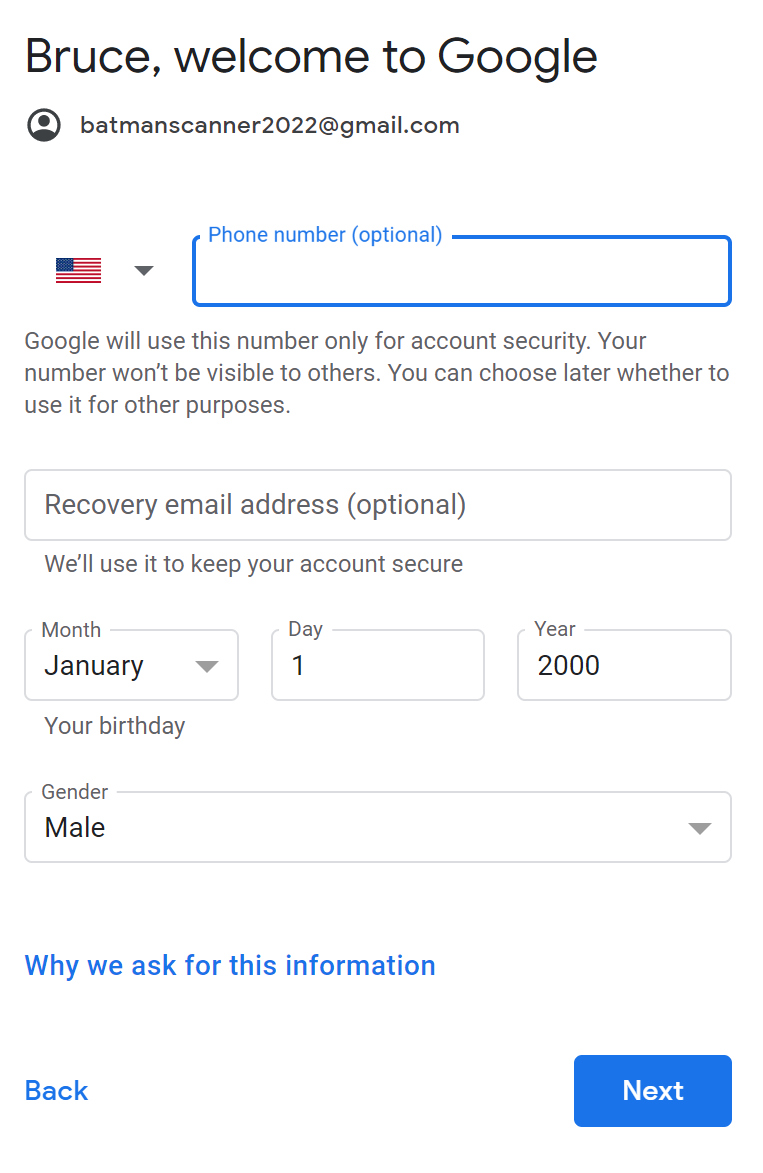
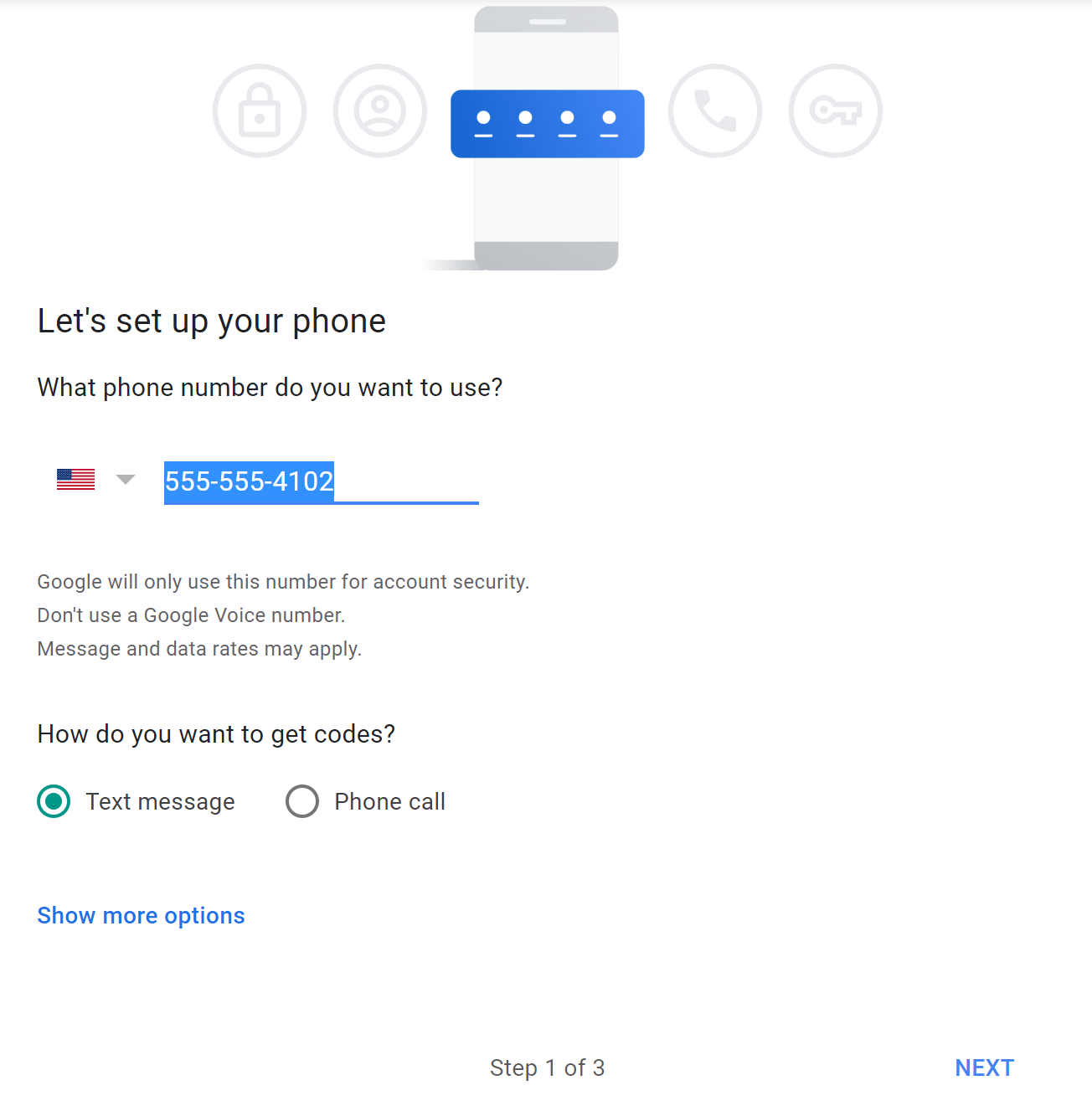
10. Enter a mobile phone number for verification and click Next.
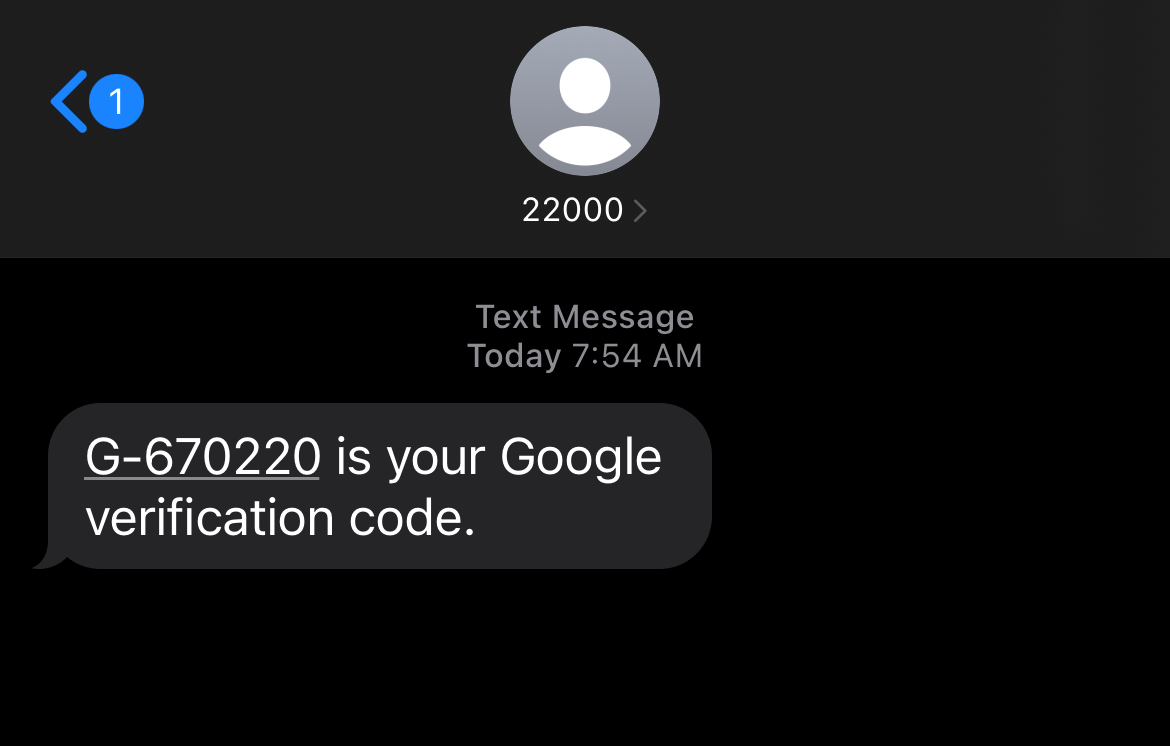
11. Enter the 6-digit verification code sent to your phone.
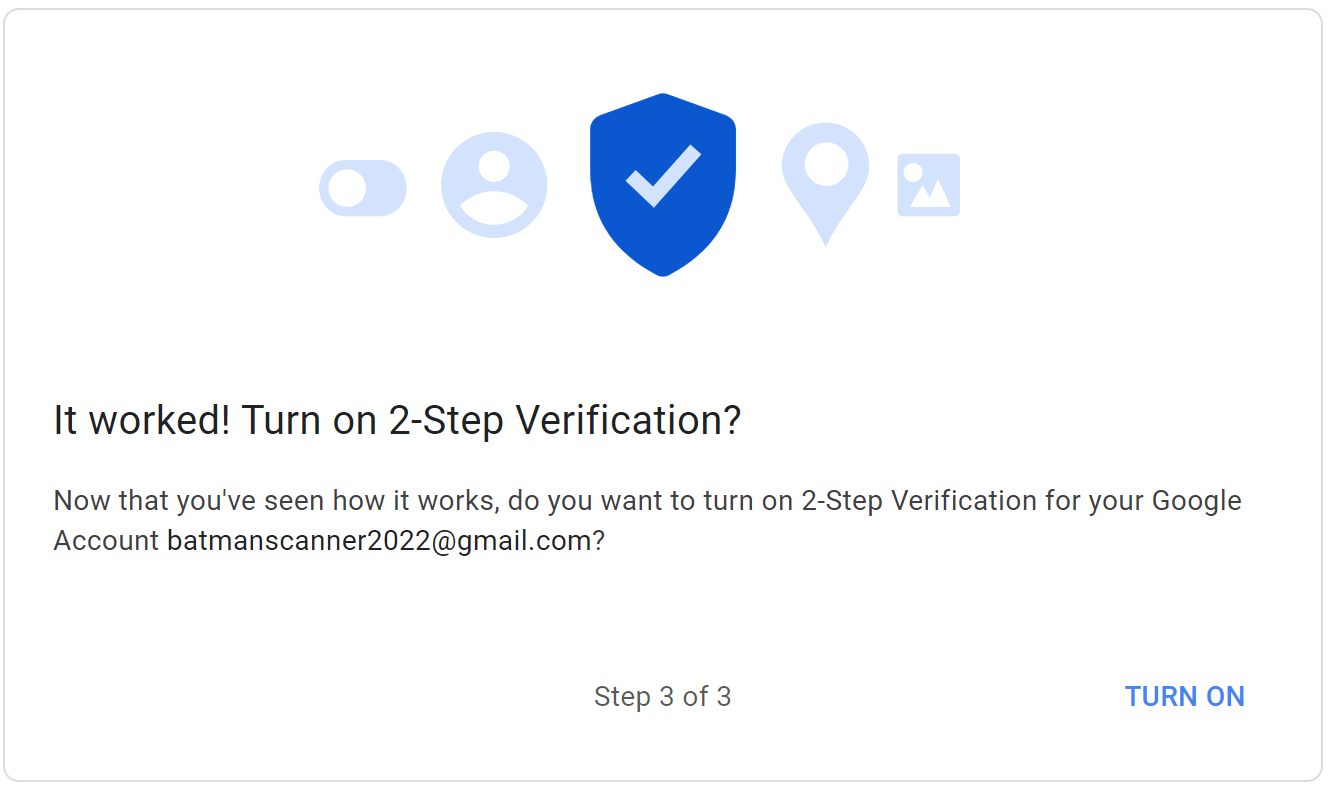
12. Click Turn On to enable 2-Step Verification.
13. Open Manage your Google Account.
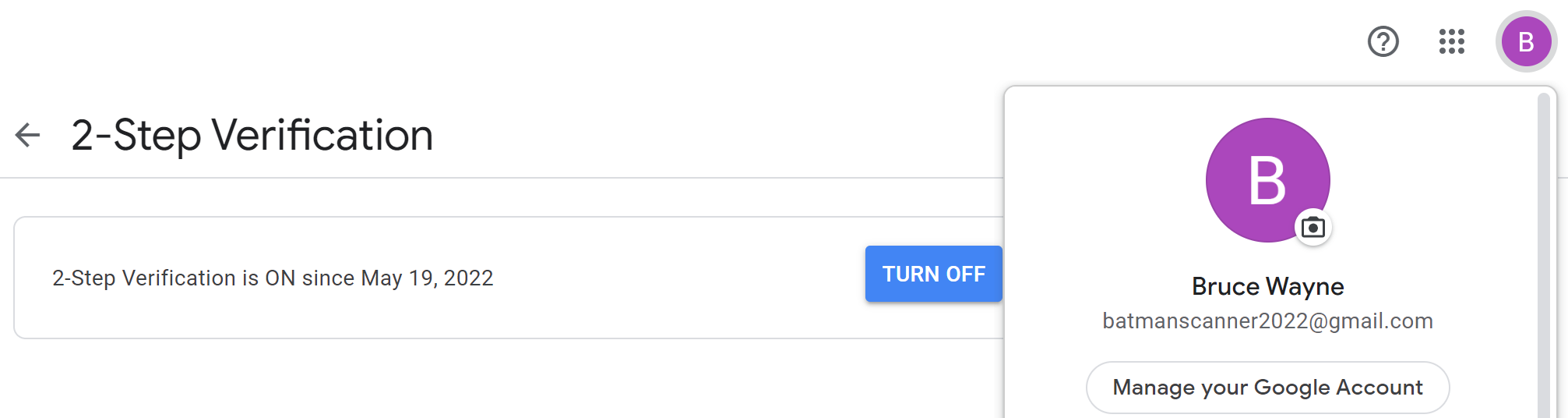
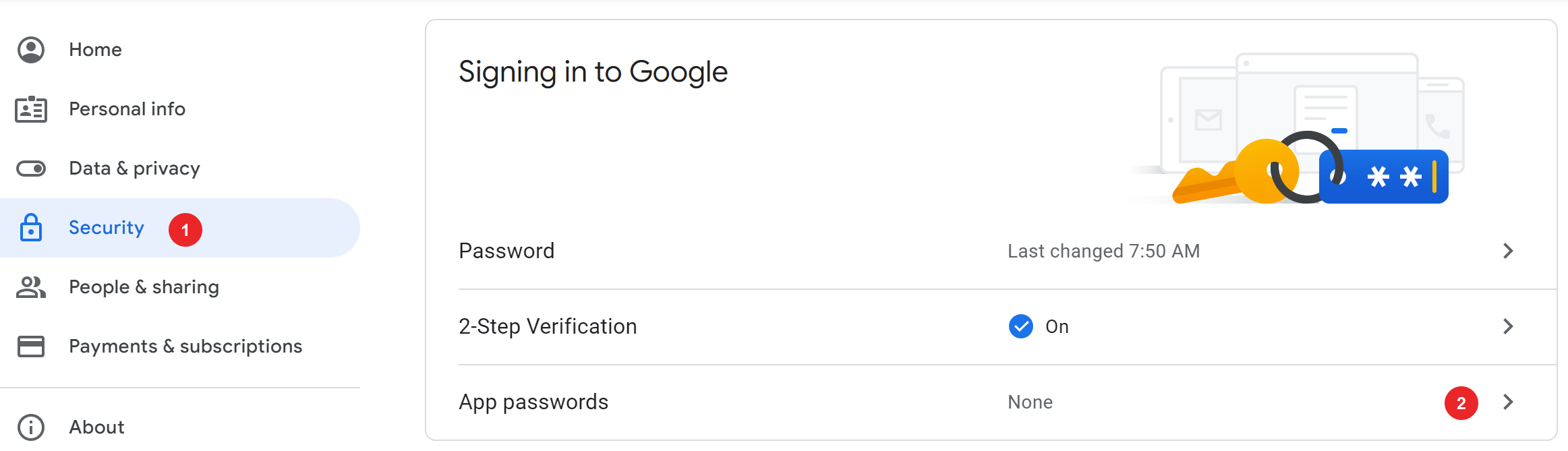
14. Go to Security and open App passwords.
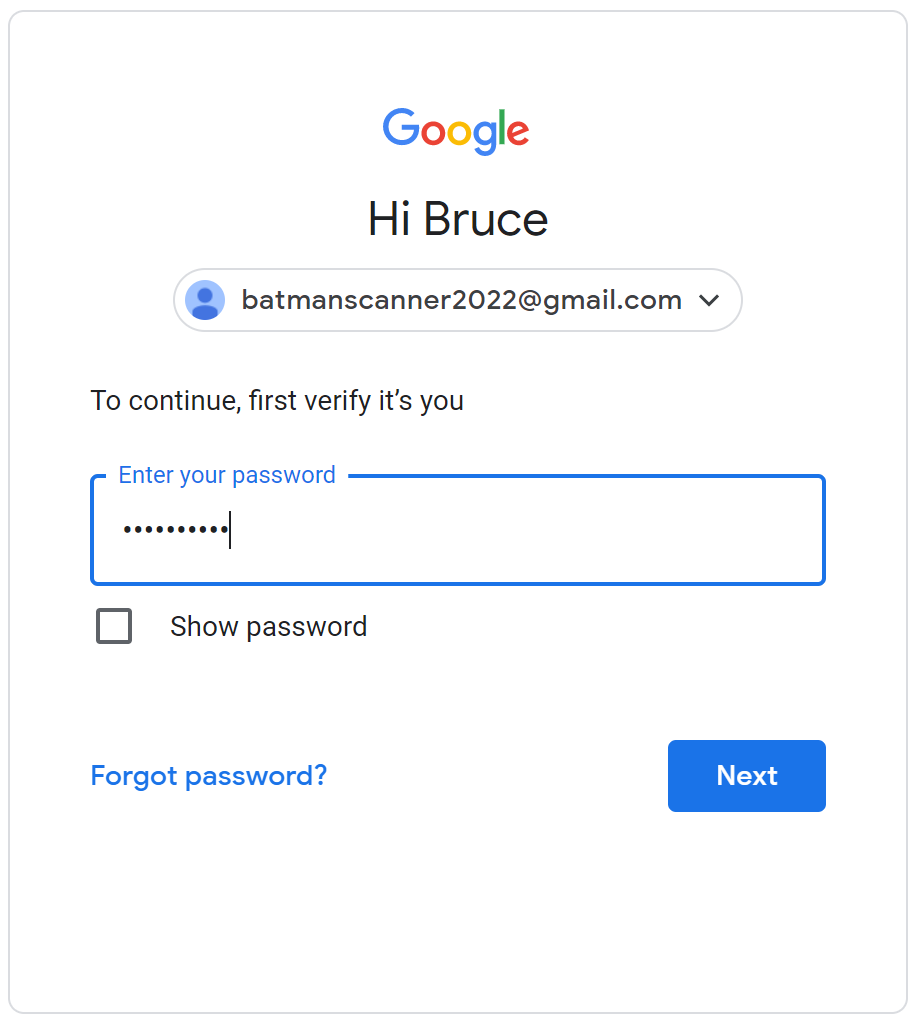
15. Verify your password again.
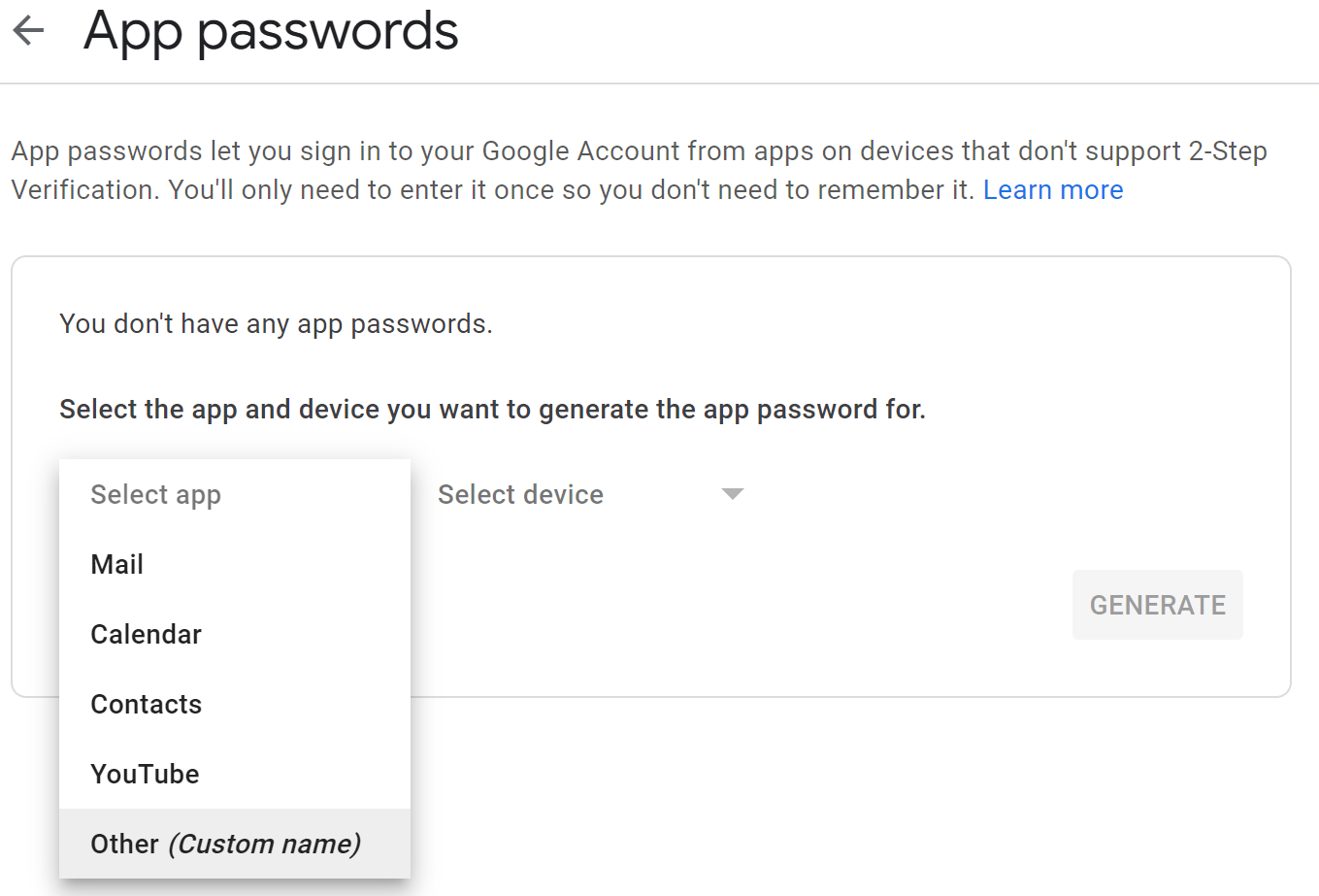
16. Select Other as the app type.
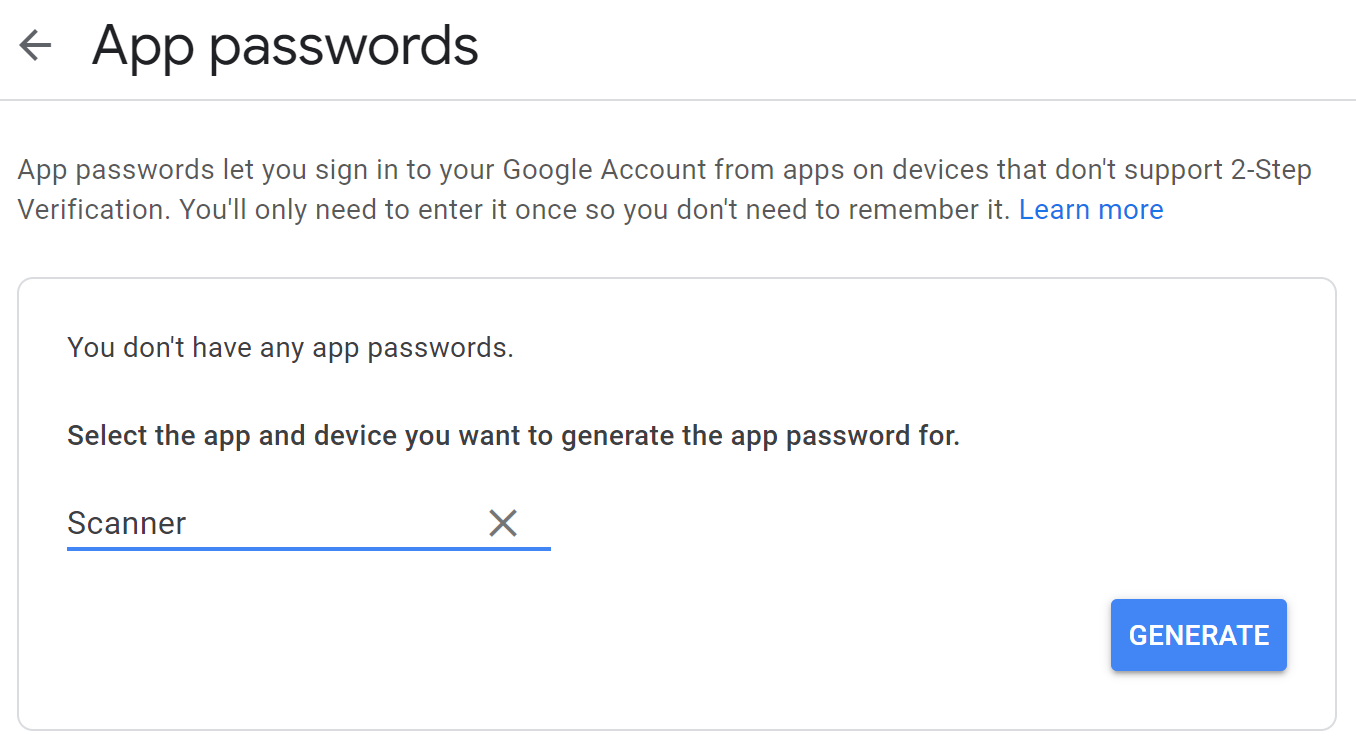
17. Enter Scanner as the app name and click Generate.
IMPORTANT: Copy the generated app password. It cannot be recovered once you leave this screen.
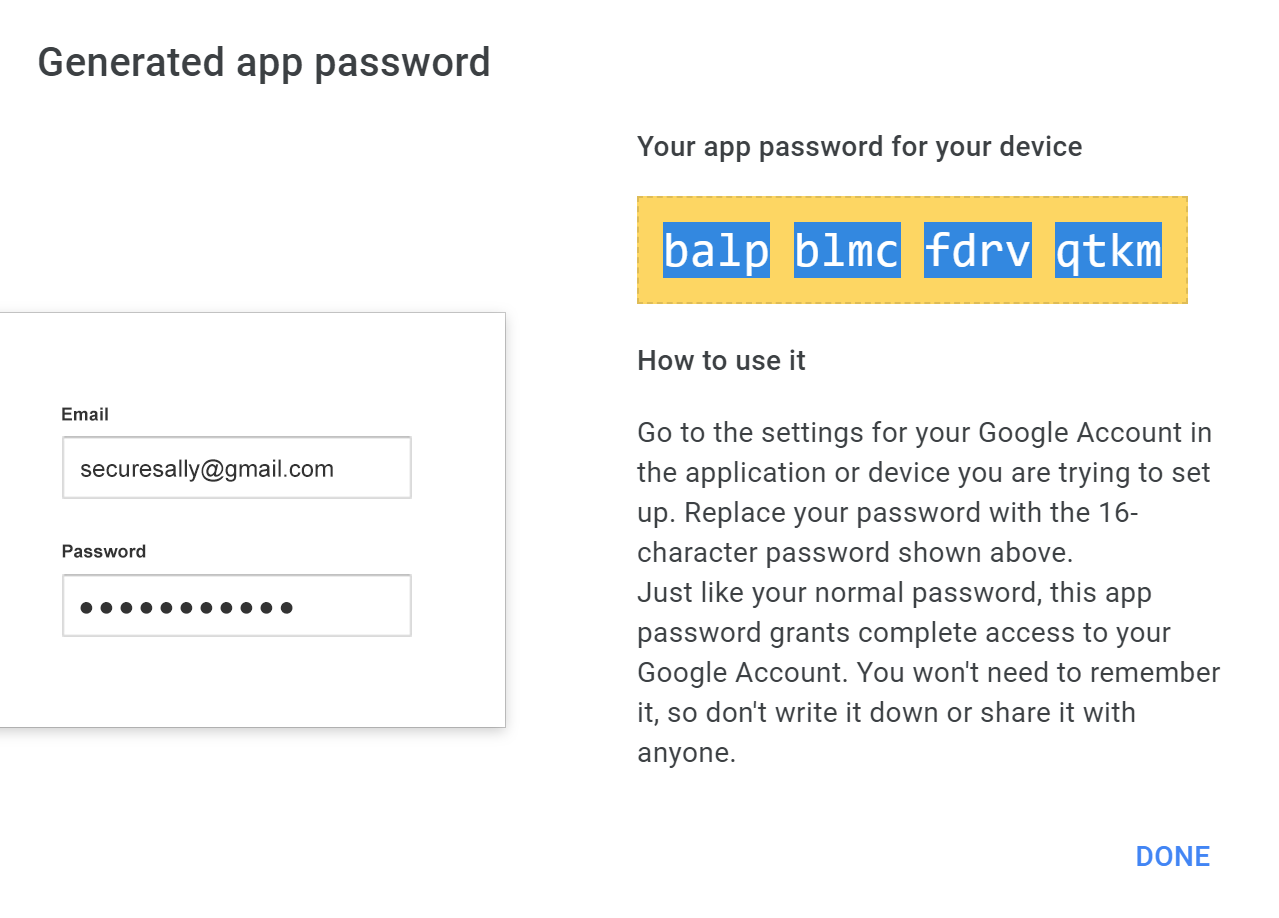
SMTP Settings in Sharp Web Interface
- SMTP Server: smtp.gmail.com
- Port: 587
- Sender Address: Gmail address created earlier
- Enable SSL
- Enable SMTP Authentication
- Username: Gmail address
- Password: Generated Gmail App Password
Click Submit, then run the connection test using Execute. Confirm the test completes successfully.
This concludes the setup process for Scan to Email using Gmail App Passwords and 2-Factor Authentication.
If you need assistance, contact Platinum Copier Solutions at (281) 645-4036.
Applicable Models: MX-3051, MX-2651, MX-3071, MX-3551, MX-3571, MX-4051, MX-4071, MX-5051, MX-5071, MX-5070, MX-5050, MX-3050, MX-3070, MX-3550, MX-3570, MX-6050, MX-6070, MX-6051, MX-6071, MX-M3050, MX-M3051, MX-M3070, MX-M3071, MX-M3550, MX-M3551, MX-M3570, MX-M3571, MX-M4050, MX-M4051, MX-M4070, MX-M4071, MX-2640N, MX-3140N, MX-3640N, MX-4140N, MX-4141N, MX-5140N, MX-5141N, BP Series models, MX-6580N, MX-7080N, MX-M905, MX-M1205, MX-M1206, MX-M1056, MX-M1055
Nationwide Sales and Service
Platinum Copier Solutions is the premier Sharp copier dealer in Texas, but we can cover your office equipment needs nationwide! We work with a network of certified Sharp providers around the country to provide coverage to all 50 states. Your business has one company to contact for all sales, service and supply requests.
Perks of using one vendor company-wide: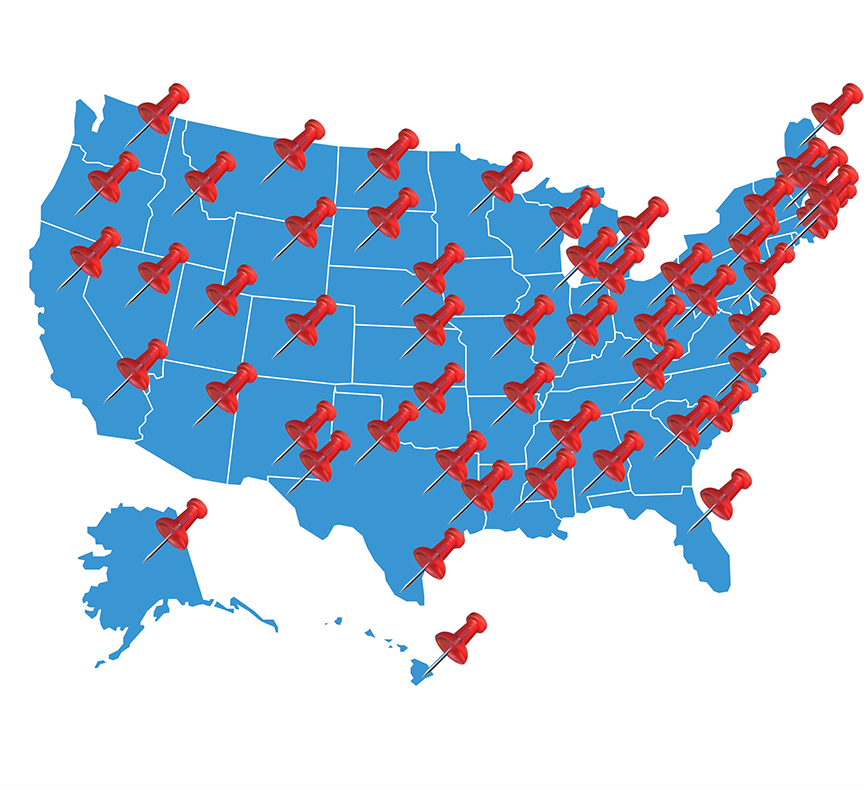
- Consolidated billing
- Live voice answering for service dispatch and supply orders nationwide
- Uniform fleet with matching interfaces and supplies
- Standardized “clone” file so all of your equipment has identical settings (security, network settings, interface customization)
- Support tools for IT staff to manage entire fleet
- Automated meter reading collection
- Proactive toner shipment (*opt-in)
Let’s get started.


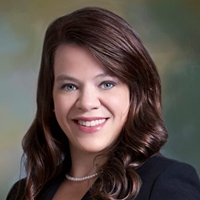
Kimberly Gonzalez founded Platinum Copier Solutions in 2007 after building her career in the copier and office equipment industry, which began at just 19 years old, selling Xerox copiers. Her early hands-on experience sparked a lifelong passion for document systems and office technology, ultimately inspiring her to launch her own company. As the 100 percent owner, Kimberly continues to lead Platinum Copier Solutions with a clear vision and commitment to quality.